
Field guide
How to get to inbox zero in Gmail, and stay there
Inbox zero isn't about reading everything. It's about deciding once. A plain method for getting Gmail to empty, with the keys that make it take minutes.
Inbox zero doesn't mean you've answered every email. It means every email in your inbox is there because you decided it should be, and nothing else is. An empty inbox is just what that looks like.
The trick is to decide once per email, not once per glance.
First, the backlog
If your inbox holds thousands of emails, don't open them one by one. Clear the old ones in bulk, then use the daily method on what's left.
- Search Gmail for old inbox mail:
in:inbox older_than:30d. - Click the select box at the top, then "Select all conversations that match this search".
- Skim the list for anything still waiting on you first: with Gmail's conversation view on, a thread with one old email and a new reply can match too. Then click Archive. Nothing is deleted; it's all still in All Mail and in search.
- For senders who fill your inbox, unsubscribe or make a filter that skips the inbox.
The method: one decision per email
Open each email once and do one of five things with it:
- Done. Nothing more to do? Archive it. It's still in Gmail and still searchable, just out of your way.
- Answer. If the reply takes two minutes or less, write it now and archive the conversation as you send.
- Later. If it needs you, but not today, snooze it until the day it does.
- Junk. Spam goes to Spam. Newsletters you never read get an unsubscribe.
- Keep. Only what needs you today stays in the inbox.
Do it in one or two sittings a day, not every time a notification lands. The keys are in Gmail keyboard shortcuts.
Doing it in Gmail
On the web, turn on keyboard shortcuts in Settings first. Then E archives, R replies, ! reports spam, and B snoozes. Gmail's Send & Archive button lives in Settings too, under General.
Doing it faster in Postal
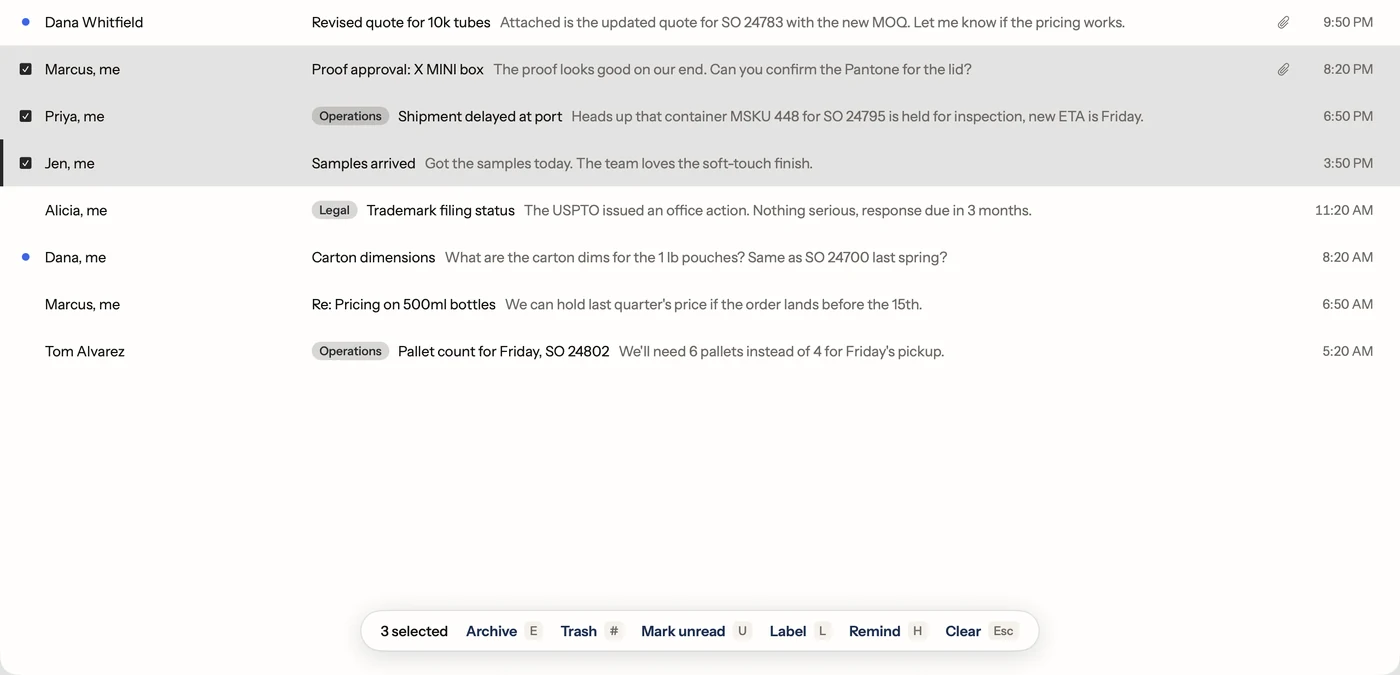
Postal is a free Mac app for Gmail built around exactly this loop. Every one of the five decisions is one key:
| Decision | Key in Postal |
|---|---|
| Done | E archives and opens the next email |
| Answer | R, then ⌘⇧↵ sends and archives in one step |
| Later | H, then pick later today, tomorrow, next week, or type any day |
| Junk | ! for spam, ⌘U to unsubscribe and archive, # for trash |
| Keep | Do nothing, and move on with J |
Made a mistake? Z undoes the last thing you did, putting the email back exactly as it was.
Clear the easy ones in bulk
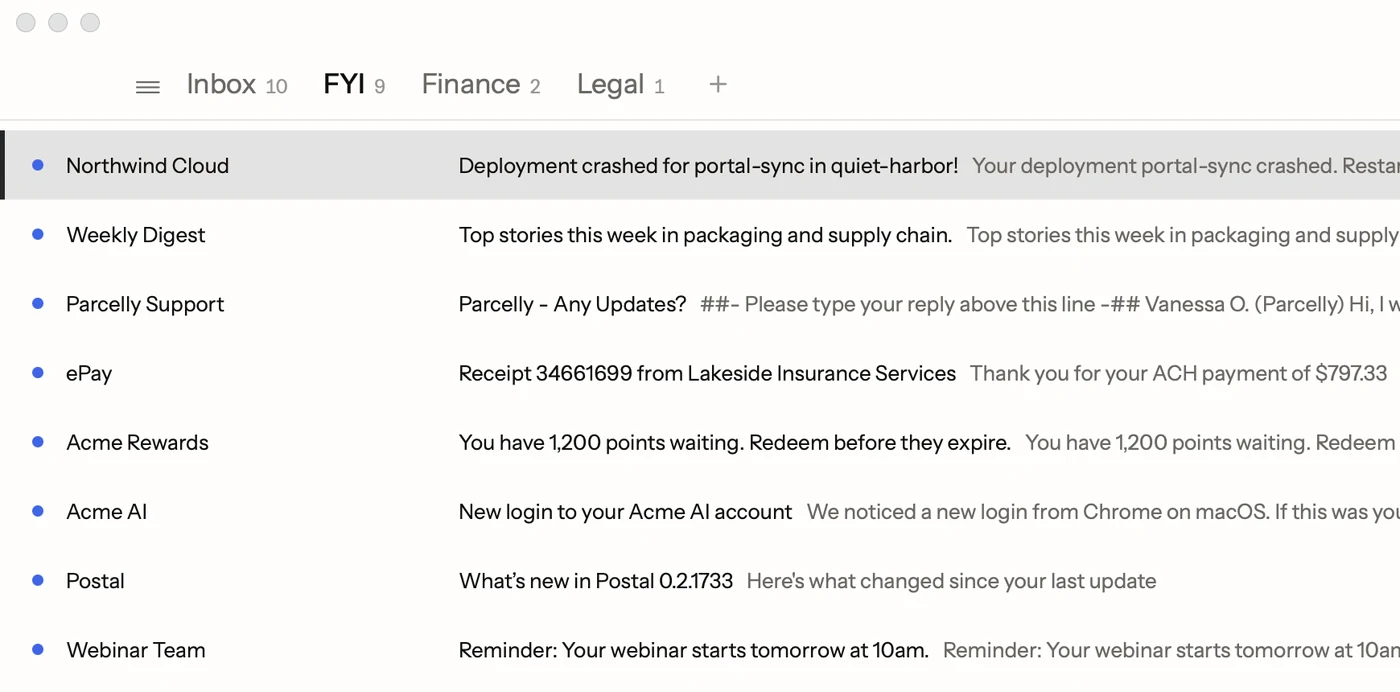
Most of a full inbox is mail that needs no answer: alerts, receipts, newsletters, sign-in notices. Postal moves those into an FYI tab on their own, so the inbox holds what needs you. When you have a minute, open FYI, skim it, and clear the lot.
To clear several at once anywhere, press X on each one, or press ⇧J to select each one as you move down, then E archives them all.
Staying at zero
- Process, then close. Check mail at set times, not every time something arrives.
- Unsubscribe as you go. Every newsletter you drop is one less decision a week.
- Make tabs for the rest. If a kind of email always waits, like invoices or a client's threads, give it a tab of its own so it stops crowding the inbox.
Facts on this page checked . Other apps change; their own sites have the latest.
Join Postal's free waitlist
Leave your email and click the link we send to confirm it. Everyone confirmed by Tuesday at 10 AM Pacific gets an invite that day, and we help each one get set up.
Free · macOS 15 or later · Gmail and Google Workspace. The iPhone app is on TestFlight. How we use your email