
Gmail for Mac
Fast email, your way.
A fast Mac app for Gmail. A single key for everything you do all day. Your mail goes straight between you and Google, never through us.
Next batch Tuesday, 10 AM Pacific
Everyone confirmed before the clock runs out gets an invite that Tuesday, and we’ll walk you through getting set up. We’ll email your invite and a few tips. Leave any time. How we use your email

Postal for iPhone, on TestFlight now
- Free
- Single-key shortcuts
- Your mail never touches our servers
- On-device AI with Apple Intelligence
Fast
Hit a key. It’s done.
Reply, archive, remind, label and write without touching the mouse. ⌘K finds every command by name and shows its key. Try it: press any key below, or / to search them all.
No shortcut by that name yet.
Your inbox, your way
Sorted the way you think.
Postal splits your mail into tabs, so the email that needs you isn’t buried under the email that doesn’t.
An FYI tab
Alerts and newsletters move out of your inbox into FYI. It’s everything you don’t need to answer, ready to read and clear in one go.
Tabs you set up
Make your own tabs, like Invoices or Clients, and decide what goes in each, so every kind of email has its place.
All your accounts in one list
With two Gmail accounts or more, All Inboxes shows them together in one tab. Outlook is coming soon.
Out of the list for good
⌘U unsubscribes from a newsletter, even the ones whose only way out is an email.
Junk, gone
! sends an email to Spam and # sends it to Trash. Z takes either back.
Writing
Start halfway done.
Every new email already says hello, your common replies are a few keys away, and Smart Compose finishes your sentences.

Postal for iPhone, on TestFlight now
You type
› Thanks for the final art. We’ll send the proof by Friday.
Tab keeps the gray words.
Text shortcuts
Type ;ty and your whole thank-you goes in. Save as many as you like.
Search
Ask for it in plain words.
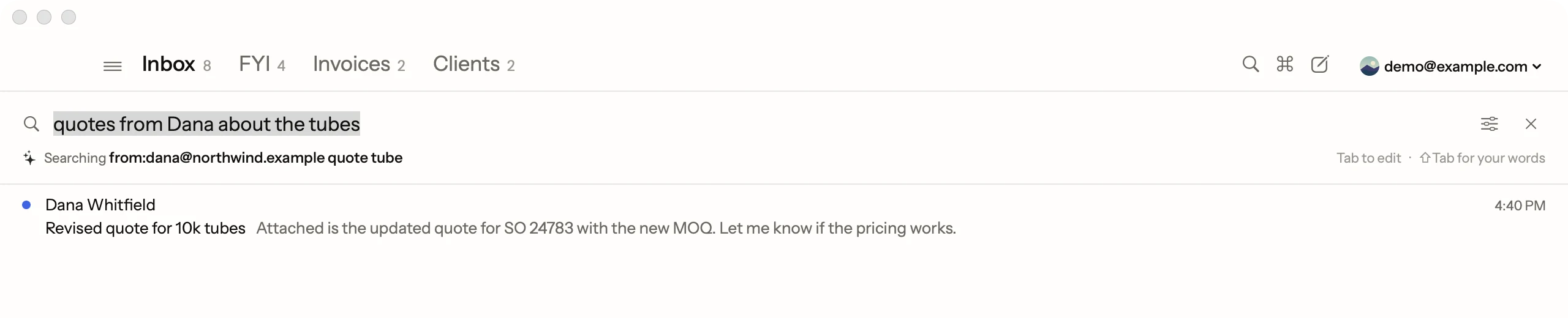
Type what you remember, like “invoices from Tom last month”, and Postal turns it into the right search.
You type
› invoices from Tom last month
from:tom@example.com invoice after:2026/09/01 before:2026/10/01
Free
Apple’s on-device model
AI search and Smart Compose run on your Mac. Nothing they read leaves it.
Apple’s on-device model needs macOS 26 with Apple Intelligence turned on. Everything else works on macOS 15 or later.
The basics
Everything you expect, done right.
Undo Send, the forgotten-attachment check, signatures, aliases and the rest of what an email app should do. Search them all.
Undo Send
Take back an email after pressing Send, with a wait of 5, 10, 20 or 30 seconds.
WritingForgotten attachment check
Say something is attached but forget the file, and you’re asked before it sends.
WritingToo-big attachment warning
Know right away when your files pass Gmail’s 25 MB limit, before you send.
WritingYour Gmail signature
Your Gmail signature is added to every email you send, and shows in Settings.
WritingSend from an alias
Pick which of your Gmail addresses an email comes from, with Command-Shift-F.
WritingReplies from the right address
Answer mail sent to another of your addresses and the reply goes out from that one.
WritingRich text formatting
Bold, italics, underline, strikethrough, lists and links, each with a keyboard shortcut.
WritingPaste keeps formatting
Pasted text keeps its bold, links and lists, or paste plain text with Shift-Command-V.
WritingPictures in your email
Paste or drop a picture right into your words, or attach it as a file.
WritingDrag and drop attachments
Drop files onto a draft to attach them, or attach what’s on your clipboard.
WritingDrafts
Unsent emails wait in Drafts, so you can close one and finish it later.
WritingReply, Reply All, Forward
Answer the sender, answer everyone, or forward the email, each with a single key.
WritingSend and Archive
Send your reply and clear the conversation from your inbox in one step.
WritingContact suggestions
Start typing a name in To, Cc or Bcc and people you’ve emailed come up.
WritingSpelling and grammar check
Misspellings and grammar slips are marked as you type, never in the email you’re quoting.
WritingText shortcuts
Save text you type often, then type a short code like ;ty to drop it in.
WritingAutomatic greeting
New drafts can open with Hey, Hi or just the person’s first name, already typed.
WritingSmart Compose
Gray words finish your sentence as you type, written on your Mac by Apple Intelligence.
WritingQuoted text tucked away
The email you’re answering folds behind •••; open it to see it or answer under any line.
WritingConversation view
Every email in a thread reads as one conversation; open one or all with a key.
ReadingPicture and PDF previews
Click a picture or PDF to see it big, zoom in and copy it.
ReadingDownload All
Save one attachment, or every attachment in an email, to Downloads in one click.
ReadingClickable links and addresses
Web and email addresses typed out in an email become links you can click.
ReadingSender side panel
See your recent emails with the sender beside the conversation, and click one to open it.
ReadingWorks offline
Read, archive, label and reply with no connection; it all goes out once you’re back.
ReadingArchive
Clear an email from your inbox with E, and move it back with Shift-E.
OrganizingRemind Me later
Hide an email until later today, tomorrow, next week, or any day you type.
OrganizingStar
Star important emails with S and find them all in Starred.
OrganizingRead and unread
Mark any email read or unread with U.
OrganizingLabels
Add, remove or create Gmail labels with L, or move an email to a label with V.
OrganizingInbox tabs from labels
Turn Gmail labels into tabs across your inbox, and group several under one tab.
OrganizingGmail categories as tabs
Add Promotions, Social, Updates or Forums as tabs of their own.
OrganizingFYI tab
Alerts and newsletters gather in FYI: anything you don’t need to answer, apart from mail that does.
OrganizingOne-key unsubscribe
Unsubscribe from a newsletter and archive it with Command-U.
OrganizingSpam and Trash
Send junk to Spam with ! or delete it with #.
OrganizingUndo almost anything
Z undoes archive, labels, trash and more, putting the email back exactly as it was.
OrganizingAct on many emails
Select emails with X, Shift-click or Command-click, then handle them all at once.
OrganizingEvery folder in one menu
Open Sent, Drafts, Archive, Spam, Trash, All Mail and every label from one menu.
OrganizingGmail search words
Search like Gmail with from:, has:attachment and more, or fill in the Advanced Search form.
OrganizingSearch by typing a sentence
Type a sentence like "invoices from Tom last month" and get the right search.
OrganizingMultiple Gmail accounts
Add several Google accounts and jump between them with Control and a number.
AccountsAll Inboxes
See every account’s mail together in one list, each marked with its account.
AccountsAccount pictures
Give each account its own picture so you always know which one you’re in.
AccountsSettings follow you
Your colors, shortcuts and other choices match across your Macs and iPhone through iCloud.
AccountsPhishing warnings
Emails pretending to be a company or someone you know get a red warning.
SafetyLink check
A link that leads somewhere other than it says asks before it opens.
SafetyTracking pictures blocked
Hidden tracking pictures, the usual way senders learn you opened their email, never load.
SafetyAsk before loading pictures
Keep every picture from the web hidden until you choose to load it.
SafetyEncrypted on your Mac
Your mail, pictures and unsent drafts are stored encrypted on your Mac.
SafetyMail stays with Google
Your mail goes only between your device and Google, never to any other server.
SafetyDark mode
Pick light, dark or match your Mac, and plain emails follow your colors.
LookColor themes
Choose a background theme and accent colors, or save a color mix of your own.
LookText size
Make text bigger or smaller with Command-plus and Command-minus.
LookPreview line placement
Show each email’s preview beside its subject, or on its own line underneath.
LookButtons or keys only
Show clickable buttons for everything, or hide them and use only the keyboard.
LookVoiceOver ready
Every button, address field and inbox row has a name VoiceOver reads aloud.
LookKeyboard shortcuts
Single keys archive, reply, forward, star, label and more, so your hands stay on the keyboard.
OtherCommand-K for everything
Press Command-K, type what you want, and run any command with its shortcut shown.
OtherPractice tutorial
A practice inbox walks you through the main shortcuts without touching your real mail.
OtherNew mail notifications
Important mail pops up with the sender and subject, and the Dock shows how many are unread.
Other
Nothing by that name. Ask us if Postal does it.
Make it yours
A look you pick.
Pick a theme, an accent, a background, light or dark. Try it on the inbox below: it’s the same choices Postal gives you in Settings.
Your colors
Change any color, from the unread dot to the Send button, save the mix as your own theme, and switch themes in one click.
Your layout
Keys only or buttons too, preview text under the subject or not. The Layout page in Settings puts things where you want them.
How Postal compares
Keyboard first. Nothing between you and Google.
A real Mac app for Gmail, free, with every action on a key.
| Feature | Postal | Superhuman | Mimestream | Gmail |
|---|---|---|---|---|
| Price | Free | From $25 a person a month, billed yearly | $49.99 a year | Free |
| Mac app | Yes | Yes | Yes | No, web only |
| iPhone app | TestFlight users | Yes | Beta for subscribers | Yes |
| ⌘K command menu | Yes | Yes | Not advertised | No |
| Inbox tabs you set up | Yes | Split Inbox | Gmail categories | Gmail categories |
| Your mail on the app maker’s servers | Never | Yes | No | It’s Google |
| AI | Apple’s on-device model | Cloud | None | Cloud (Gemini) |
Prices and features from each company’s own site, checked 10/30/26. Superhuman’s price from its pricing page, checked 10/31/26.
Questions
Good to know.
Is Postal really free?
Yes. Every feature is free, with no ads.
Why is there a waitlist?
So we can help each group get set up, and hear what’s missing. A new batch goes out every Tuesday at 10 AM Pacific, and everyone confirmed by then gets an invite. It’s free.
Can you read my email?
No. Your mail goes only between Google and your Mac. We never see it, sell it, or use it for ads. Security and the Privacy Policy have the details.
Is it safe to sign in with Google?
Yes. You sign in on Google’s own page, never ours, and Google shows you exactly what the app may do with your Gmail before you allow it. Your password never reaches us, your mail then goes straight between Google and your device, and you can remove the app’s access any time in your Google Account.
What do I need?
A Mac with macOS 15 or later and a Gmail or Google Workspace account. Smart Compose and AI search on your Mac also need macOS 26 with Apple Intelligence turned on.
Does it work with Outlook?
Outlook is coming soon. Postal works with Gmail and Google Workspace accounts today.
Is there an iPhone app?
Yes, on TestFlight. Pick iPhone when you join and your invite has the TestFlight link. It’s coming to the App Store.
What’s new?
Postal updates itself, often. Every change is on the changelog.







Fast email, your way
Try Postal.
Next batch Tuesday, 10 AM Pacific
Everyone confirmed before the clock runs out gets an invite that Tuesday, and we’ll walk you through getting set up. We’ll email your invite and a few tips. Leave any time. How we use your email
Free · macOS 15 or later · Gmail and Google Workspace