
Field guide
Gmail keyboard shortcuts on a Mac, and how to use them everywhere
The Gmail keyboard shortcuts worth learning on a Mac, how to turn them on, and a free Mac app where the same single keys work out of the box.
Gmail has a full set of single-key shortcuts, and most people never use them. On the web they only work after you turn them on. Learn a dozen and you'll stop reaching for the mouse.
Turn them on in Gmail
- In Gmail on the web, click the gear at the top right, then See all settings.
- On the General tab, find Keyboard shortcuts and pick Keyboard shortcuts on.
- Scroll down and click Save Changes.
Press ? in Gmail any time to see the full list.
The ones worth learning first
| Key | What it does |
|---|---|
| C | Write a new email |
| O or Return | Open a conversation |
| ⌘↵ | Send the email you're writing |
| R | Reply |
| A | Reply all |
| F | Forward |
| E | Archive |
| # | Delete |
| ! | Report spam |
| S | Star |
| / | Search |
| J and K | Next and previous conversation |
| X | Select a conversation |
| L | Label |
| V | Move to a label |
| G then I | Go to the inbox |
These are Gmail's own keys on the web; Google's full list has the rest. Start with E, R and J. Try one round: J to the next email, O to open it, R to reply, ⌘↵ to send, E to archive. Then the next. That's inbox zero without the mouse.
The same keys in a Mac app
Postal is a free Mac app for Gmail where those same keys work the moment you sign in. There's nothing to turn on. A few more worth knowing there:
- H hides an email until later today, tomorrow, or any day you type, then brings it back.
- Z undoes the last thing you did: an archive, a label, a trash (Gmail uses Z for undo too).
- U flips read and unread.
- ⌘U unsubscribes from a newsletter and archives it.
- ⌃0 shows every account's inbox together.
- Tab moves to the next tab across the top of your inbox.
- ⌘⇧↵ sends your reply and archives the conversation.
And ⌘K opens a menu of every command. Type what you want, like "move to" or "unsubscribe", and the menu shows its key next to it. That's how you learn shortcuts without a cheat sheet: use the menu twice and you'll remember the key the third time.
Learn them with practice, not memory
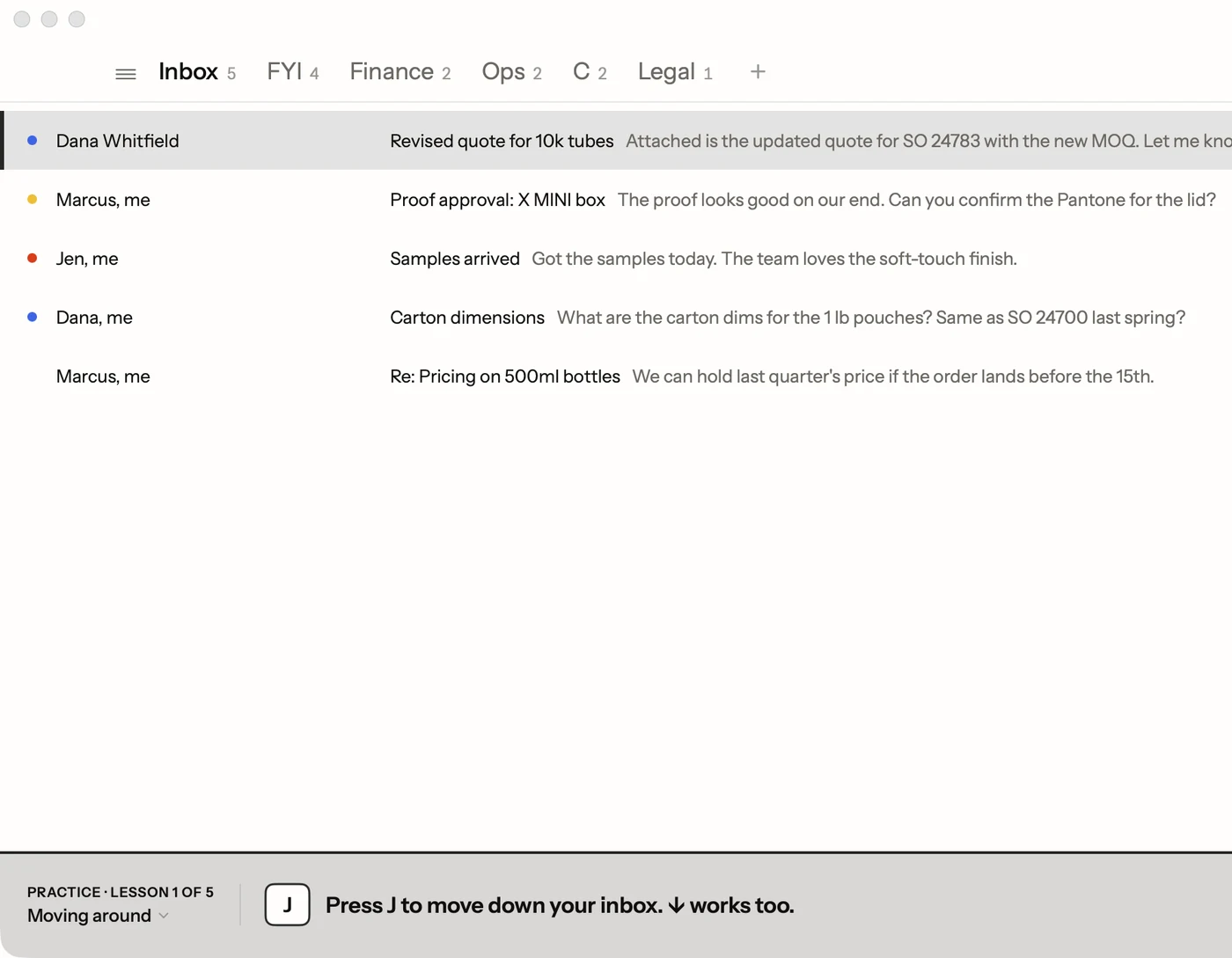
Postal's tutorial walks through the main keys on a practice inbox: moving around, clearing your inbox, replying, then search and tabs. Each step tells you what to press and waits until you've done it. It never touches your real mail. Open it any time from ⌘K by typing Tutorial.
If you'd rather click, that works too. Settings can show buttons for everything, or hide them and keep only the keys.
Facts on this page checked . Other apps change; their own sites have the latest.
Join Postal's free waitlist
Leave your email and click the link we send to confirm it. Everyone confirmed by Tuesday at 10 AM Pacific gets an invite that day, and we help each one get set up.
Free · macOS 15 or later · Gmail and Google Workspace. The iPhone app is on TestFlight. How we use your email