
Field guide
Gmail templates and canned replies, and a faster way on Mac
How to turn on Gmail's templates and use them, where they fall short, and text shortcuts that drop a saved reply in when you type a few letters.
If you write the same email more than twice a week, save it. Directions to your office, a price list, a polite no, a thank-you. A saved reply takes seconds and says it the way you meant it on a good day.
Templates in Gmail
Gmail calls them templates. They used to be called canned responses, and they're off until you turn them on.
Turn them on
- In Gmail on the web, click the gear, then See all settings.
- Open the Advanced tab.
- Next to Templates, pick Enable, then Save Changes.
Save one
- Write the email in a new draft. Leave out anything that changes each time, like the greeting.
- Click the three dots at the bottom right of the draft, then Templates, then Save draft as template, then Save as new template.
- Give it a name you'll recognize.
Use one
Open a draft, click the three dots, then Templates, and pick it by name. Its words go into the draft.
Change or delete one
Write the new version in a draft, then three dots, Templates, Save draft as template, pick the old name under Overwrite template, and click Save. To delete one, three dots, Templates, Delete template, then pick it and confirm. Google's help page has more.
Where templates fall short
Templates work, but every use is four clicks through a menu, from the mouse. They also live only in Gmail on the web, so they aren't there in most other email apps. If you send a saved reply ten times a day, those clicks add up.
Text shortcuts in Postal
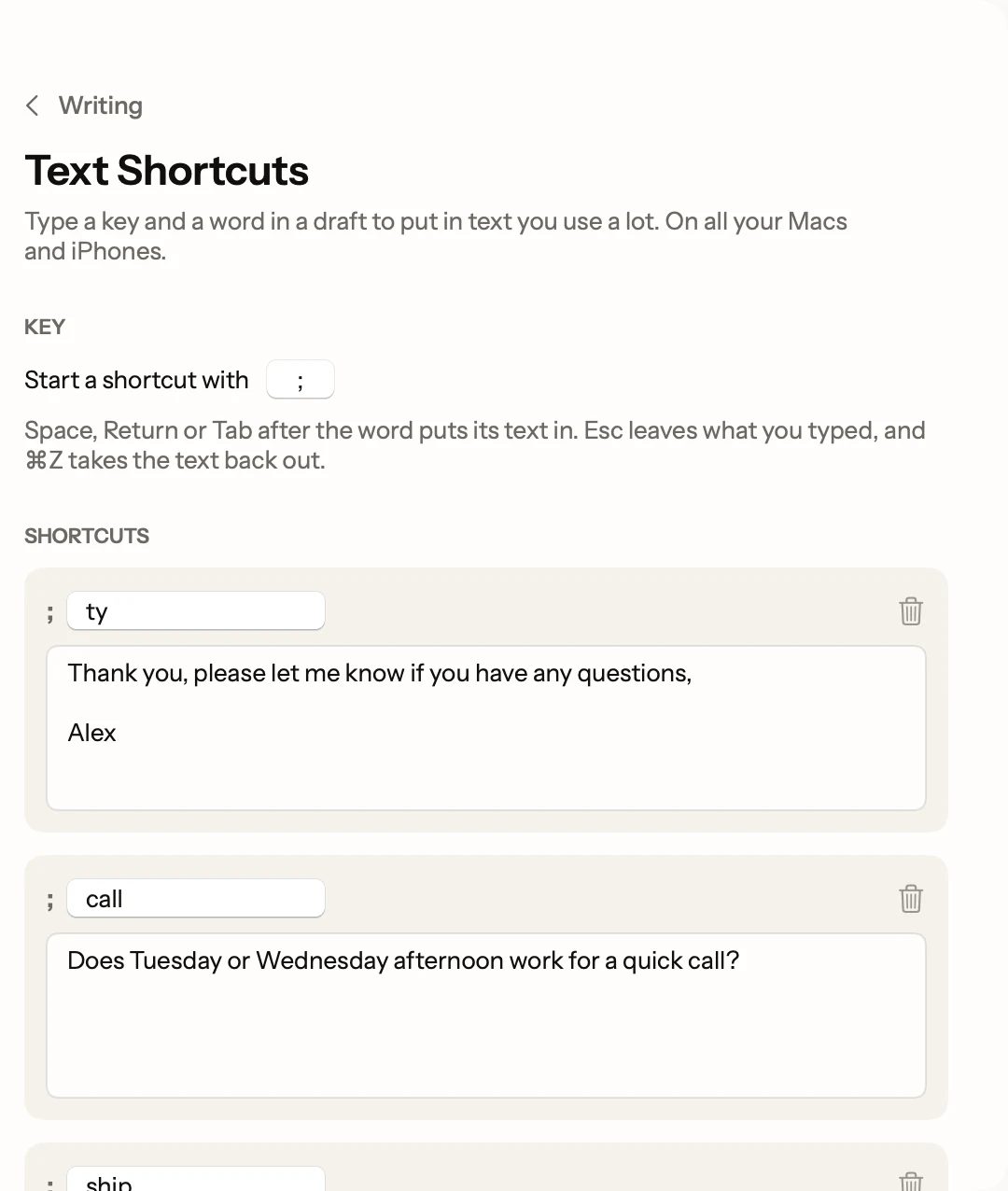
Postal, a free Mac app for Gmail, does this with the keyboard instead. Save a piece of text with a short code, then type the code in any draft and the text appears.
- Type, don't click. Type
;tyand your whole thank-you note goes in, right where your cursor is. Space, Return or Tab after the code puts it in. - Up to 100 of them.
;callfor "Does Tuesday or Wednesday afternoon work for a quick call?",;addrfor your address,;bankfor wire details. - Easy to take back. ⌘Z takes the text back out.
- On every Mac. Your shortcuts follow you to your other Macs and the iPhone app through your own iCloud.
Set them up in Postal's Settings, under Writing, then Text Shortcuts.
Start each email halfway done
Two more things in Postal cut the typing on every email:
- Greeting. New drafts can open with "Hi" and the first name of whoever's in To, already typed. Pick the word you use, like Hey or Hi, or just the name.
- Smart Compose. As you type, gray words suggest the rest of your sentence. Tab keeps them. It runs on your Mac with Apple Intelligence.
A starter set worth saving
Copy these and make them yours.
- Following up: "Following up on this. Any word on the dates? Happy to jump on a call if that's easier."
- A polite no: "Thanks for thinking of us. It's not a fit right now, so I'll pass, but I appreciate you reaching out."
- Your availability: "Does Tuesday or Wednesday afternoon work for a quick call?"
- Closing the loop: "Got it, thank you. Nothing else needed from my side."
Gmail templates don't carry over to Postal's text shortcuts on their own; paste the words in once and give each a code.
Facts on this page checked . Other apps change; their own sites have the latest.
Join Postal's free waitlist
Leave your email and click the link we send to confirm it. Everyone confirmed by Tuesday at 10 AM Pacific gets an invite that day, and we help each one get set up.
Free · macOS 15 or later · Gmail and Google Workspace. The iPhone app is on TestFlight. How we use your email